Finding and Restoring Data
You might want to search for data files or folders in your research group, especially when the amount of data you are working with is growing or when you have many different research groups of folders you work in. If you accidentally deleted data you can request a restore from backup.
How to: Finding files and folders
Follow these steps to search for files or folders in Yoda.
- Go to the Yoda portal and sign in.
- Click on ‘Research’ in the menu (the grey bar).
Above the menu is the ‘quick search’ entry. This will search for matching file names.

Once the search is done you can refine or renew the search with more search options, with the search bar just below the menu.
You can select specific components in the drop-down menu to the left of the search bar. 
Search by filename / search by folder
If you know (part of) the name of the file or folder you are looking for, use this as ‘Search term’.
A search by name will find files and folders with the search term in its name. Typing a series of letters will reveal all files and (sub)folders containing that series in the name. For example, searching on “er” will result in finding:
- “er”
- “Er”
- “Ergonomics”
- “Folder A”
Search by metadata
The search by metadata will search in the contents of the fields in the metadata form. It reveals all fields containing your search term.
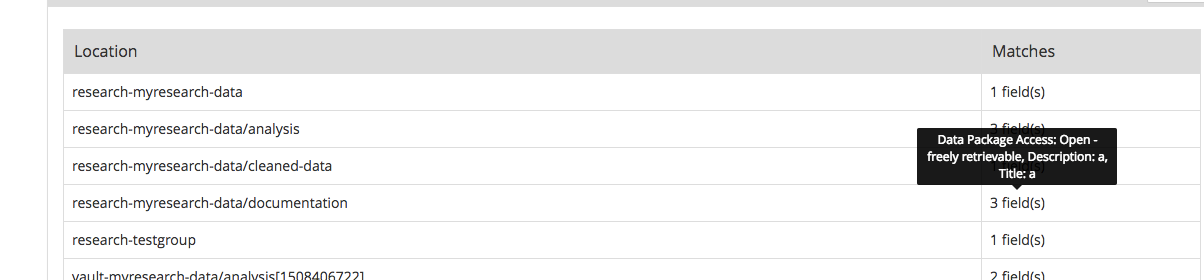
At first you will see the number of fields and hovering over it will show exactly which field contains the search term.
Search by status
You can also search by status in the vault. 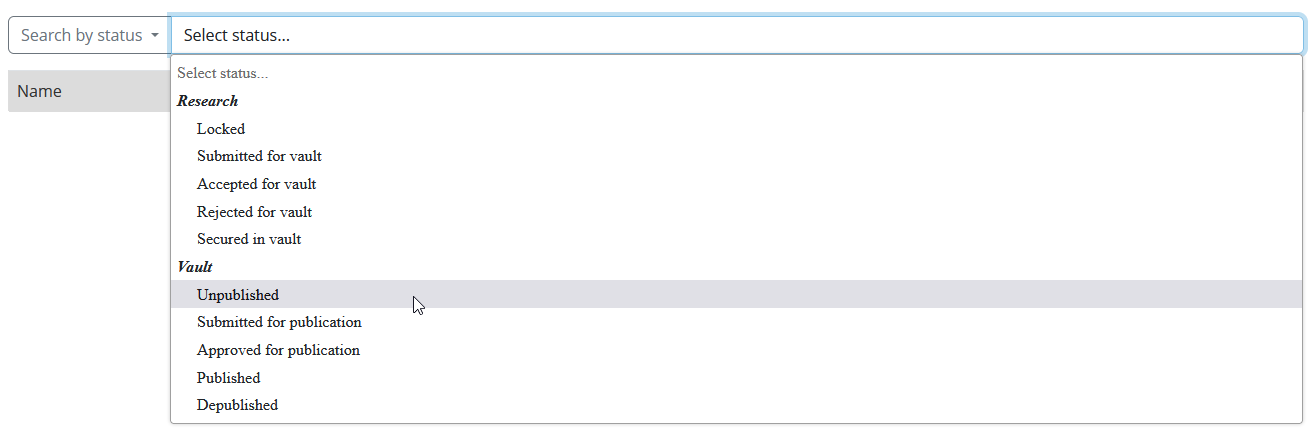
Restore options
A daily backup is made of all data in the Yoda Research space. If you need to restore data please contact the Research Support Desk at rdm@vu.nl. Mention the folders and files you need restored and the last date the data was still available on Yoda.